
Playing Super Radio Calisthenics at a Set Time on Google Home
This article was automatically translated from Japanese by AI. Read the original Japanese version →
Table of Contents
It's been over a month since working from home started—how is everyone holding up? I imagine plenty of you are struggling to get enough exercise.
So at our house, we decided to do the trending Super Radio Calisthenics every morning.
Playing a YouTube video every single morning is a pain, though. Plus, once you've done it a few times you pretty much memorize the movements, so I figured audio alone is good enough instead of video.
That's why I set up Google Home to play it automatically at a set time.
How It's Done
- Extract the audio (mp3) from YouTube by whatever method you prefer
- Upload that audio (mp3) to Google Play Music
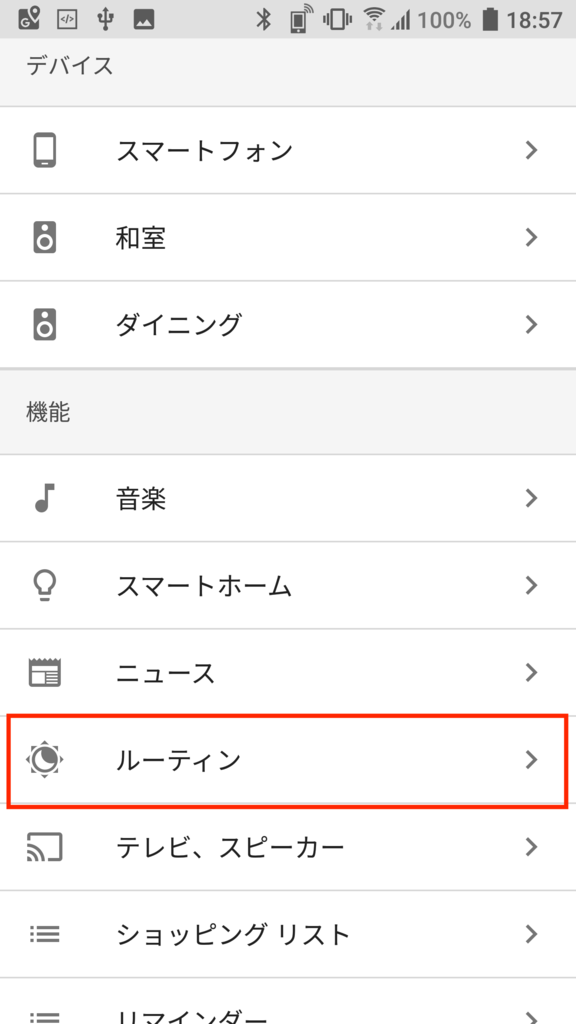
- Use Google Home's Routines feature to play the uploaded track from Google Play Music at a scheduled time
Step 1—ripping from YouTube—is a bit of a gray area in terms of copyright and YouTube's Terms of Service, though since it's strictly for personal use, let's let it slide. Ideally I wanted to invoke YouTube Music from Google Home directly, but it looks like this particular video can't be played on YouTube Music. Since it isn't a music track, I guess that can't be helped.
Step 2 shouldn't need any explanation. For Step 3, as long as you know how Routines work, you're good—feel free to check out my earlier post or the Google Home documentation.
Little Tweaks
Here are a few things to watch out for and small tweaks when setting up the Routine in Step 3.
First, here is the exact Routine configuration I'm actually using:
- Adjust media volume to 30%
- Custom announcement: "Ding-dong-ding-dong. Starting Super Radio Calisthenics."
- Read out the weather forecast
- Adjust media volume to 60%
- Play Super Radio Calisthenics on Google Play Music
- Adjust media volume to 30%
The first thing to be careful about is not starting the audio playback abruptly. Even if it starts at a scheduled time, if it launches straight into the track out of nowhere, you aren't ready for it, and scrambling feels hectic. So I have it announce what's about to start first. The message itself doesn't matter much. Even with the announcement, I felt there still wasn't quite enough lead-in time, so I added the weather forecast too. Having a relaxed prep window like that makes a big difference.
Next is volume. Step 1 sets a comfortable volume for the voice announcement and weather report. Since the Super Radio Calisthenics track itself is a bit quiet, Step 4 bumps the volume up. Leaving it that loud afterward would be too much, so Step 6 lowers the volume back down once the workout finishes.
That's it! Wishing everyone a great work-from-home life!