
Turning a Spare Amazon Fire HD 10 into a Digital Photo Frame
This article was automatically translated from Japanese by AI. Read the original Japanese version →
Table of Contents
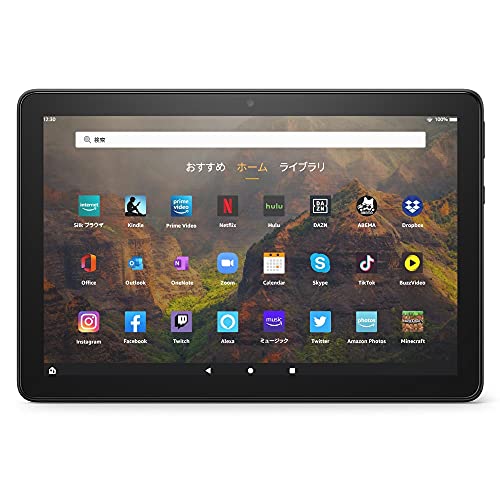
In my recent Best Buys of 2021 post, I mentioned buying an Amazon Fire HD 10 Plus. Since my old Fire HD 10 still works perfectly fine, I looked around for ways to repurpose it and saw suggestions to turn it into a digital photo frame—so I gave it a try myself.
What You Need
Here is what you need:
- A tablet
- A stand
- Somewhere to store your photos
- A slideshow app
About the Tablet
Visually, you really want a screen size of at least around 7 inches. Since a digital photo frame stays plugged in constantly and battery life doesn't matter, it's totally fine even if the battery has degraded over time. In my case, I store my photos on Google Photos, so internal storage capacity doesn't matter either. It does need Wi-Fi connectivity, though it would be harder to find a device without it.
Since the hardware requirements are minimal, the Fire HD 10—which you can grab for around 10,000 yen during sales—is an ideal fit for this. Honestly, it's even cheaper than buying a dedicated digital photo frame.
About the Stand
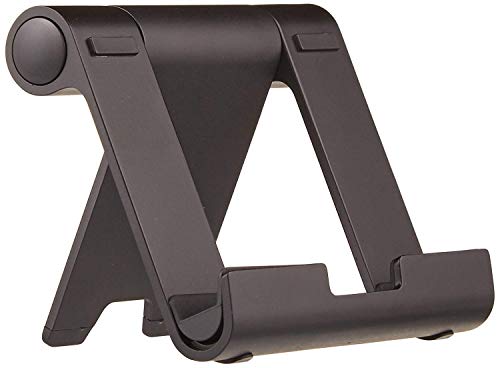
If you're going to keep it standing up permanently, you need a stand. Since most photos are landscape-oriented, look for one designed to hold the tablet horizontally. Normally you tilt a tablet back at an angle for interacting with it, but as a digital photo frame you'll want it standing nearly vertical—keep that in mind when choosing.
I went with this one:
Where to Store the Photos
I store mine in Google Photos. I created a shared album with my wife and we drop photos into it. Any cloud service works, as long as the slideshow app supports it, so sticking to a major service is a good idea.
The Fire HD 10 also has a microSD slot, so putting photos on a card is another option, though sharing and managing them becomes a bit more tedious that way.
Slideshow App
Apps that let you pick a cloud service as a source and run a shuffled slideshow are surprisingly hard to come by. I used Fotoo. It's also officially available on the Amazon Appstore (same app here).
Fotoo - Digital Photo Frame Photo Slideshow Player - Apps on Google Playplay.google.com
All the core features are free to use, though an ad for the premium plan pops up every few dozen minutes. It's best to try the free version first, and if everything works well, upgrade to premium—it's a one-time purchase of 1,000 yen.
Being able to display the date each photo was taken is a surprisingly nice touch.
Summary
And that's how I put together a digital photo frame. Now we can casually enjoy photos from our trips and everyday outings.
Finding a slideshow app that hit the sweet spot took more effort than I expected.