
How Does Elgato Sound Capture (Mixer) Actually Work?
This article was automatically translated from Japanese by AI. Read the original Japanese version →
Table of Contents
I came across this article recently.

Mixing audio on a PC without using a physical mixer is complicated, and it tends to get pretty confusing during game streaming or recording as well.
So here, I'll introduce the PC Gaming feature of Elgato Sound Capture as one example of software mixer behavior. It's basically software meant for people using Elgato Game Capture, and it's Windows-only, but I hope you find it useful as a reference. At the very least, it won't help you add sound effects to Zoom.
Also, if you're already using Elgato Game Capture, hopefully this helps clarify how it works. By the way, here is the official manual:
Elgato Sound Capture - Manual and User's Guidehelp.elgato.com
What Does Elgato Sound Capture's PC Gaming Mode Do?
First, Elgato Sound Capture creates a virtual audio output device.

It hijacks automatically sets this as Windows' default audio output device. So from Windows' perspective, audio output is routed to a different device than your usual output device (like your speakers).
Users already get confused right at this step. The manual doesn't mention a single word about this. Windows saves volume mixer settings (per-app volume levels) separately for each output device. Because of that, your audio inevitably stops playing at your usual volume. Be sure to adjust the volume for Speakers (Elgato Sound Capture) as needed.
Next, let's look at the settings inside Elgato Sound Capture.
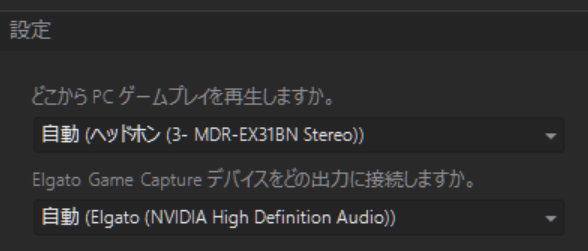
The two questions shown here mean exactly what they say. Elgato Sound Capture passes the audio coming into Speakers (Elgato Sound Capture) straight through to the output devices selected here.
In other words, it works like this:
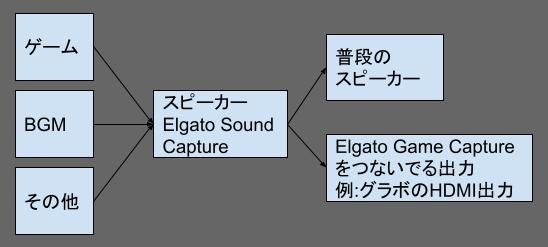
Even if you run background music playback or other applications (like Bouyomi-chan) alongside your game, they behave the exact same way.
About the Music Feature
Once you have a mental picture of the diagram above, the other features make sense too. In short, it sets up a virtual device, pulls the audio you want into it, and routes it out nicely.
For example, the Music feature assumes you're playing BGM on your PC while capturing a game running on a separate environment (such as a PS4). It's basically the diagram above minus the game and the Elgato Game Capture device. Instead of outputting the audio to a playback device, it gets mixed directly inside the Elgato Game Capture software when recording—much like commentary audio. Naturally, you can adjust its volume or mute it independently on the recording screen.
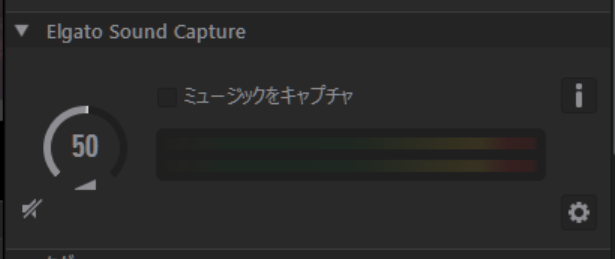
(I've never used the Team Chat feature so I'm not completely sure... At the very least, I imagine it pulls voice chat output into the recording in the same way as the Music feature. You can also specify a microphone input, though I wonder if Elgato Sound Capture's setting takes priority over Commentary?)
Bonus Note
As I mentioned earlier, Elgato Sound Capture takes over the default device setting on its own, and the simple reason for this is that neither Windows nor Mac basically has a built-in way to choose audio input/output devices on a per-application basis. So its fundamental approach is to take over everything at once.
That's all. In conclusion, audio mixing is a pain in all sorts of ways.