
Comfortable PC Control While Lounging with the Steam Controller
This article was automatically translated from Japanese by AI. Read the original Japanese version →
Table of Contents
The other day I saw this tweet going viral and thought, "Wow, so many people are really looking for a mouse they can use while lounging around!"
This is a pretty rare case for us, and it honestly surprised us.
— Elecom (Official) (@elecom_pr) May 10, 2024
Our discontinued handheld trackball—the ultimate gadget for lazy lounging—is keeping its exact model number and everything, now in simpler packaging, and
_人人人人_
> IT'S BACK <
 ̄Y^Y^Y^Y^ ̄
Scheduled to arrive at our warehouse next week. pic.twitter.com/7EC7vSjHzM
In my case, rather than lying down, I display Windows on a big 40-inch screen and sometimes operate it from across the room, so I completely understand why people need a control device like this.
I use a Steam Controller for situations like that, so this time I'll explain how it works and what it's like to use. That said, it's already discontinued and only available secondhand, so please read this with a casual "oh, cool, things like that exist" mindset.
What Is the Steam Controller?
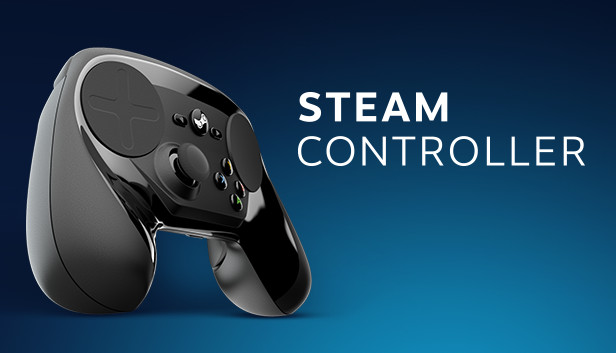
For those who don't know, the Steam Controller is a PC gaming controller released by Steam. It was originally made for playing games from the couch without a keyboard and mouse, but it was also designed with PC navigation in mind, so you can handle basic Windows operations with just this controller alone.
Here is what it looks like.
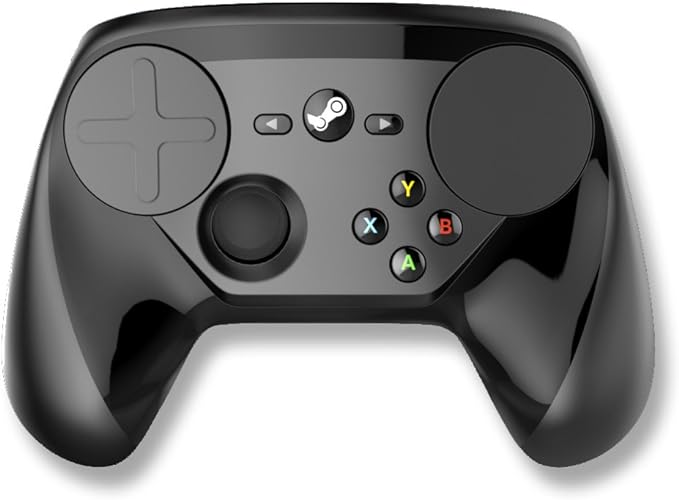
The overall shape looks like a normal controller, but its defining feature is the large trackpads on the left and right, with the ABXY buttons and analog stick positioned lower down. You can't see them in the photo, but the L/R shoulder buttons on top are like a regular controller, and there are also rear grip buttons on the left and right sides of the back.
How to Use It
Once paired with a PC, it's immediately recognized as a special keyboard and mouse—no special setup required.
The default control layout looks like this.
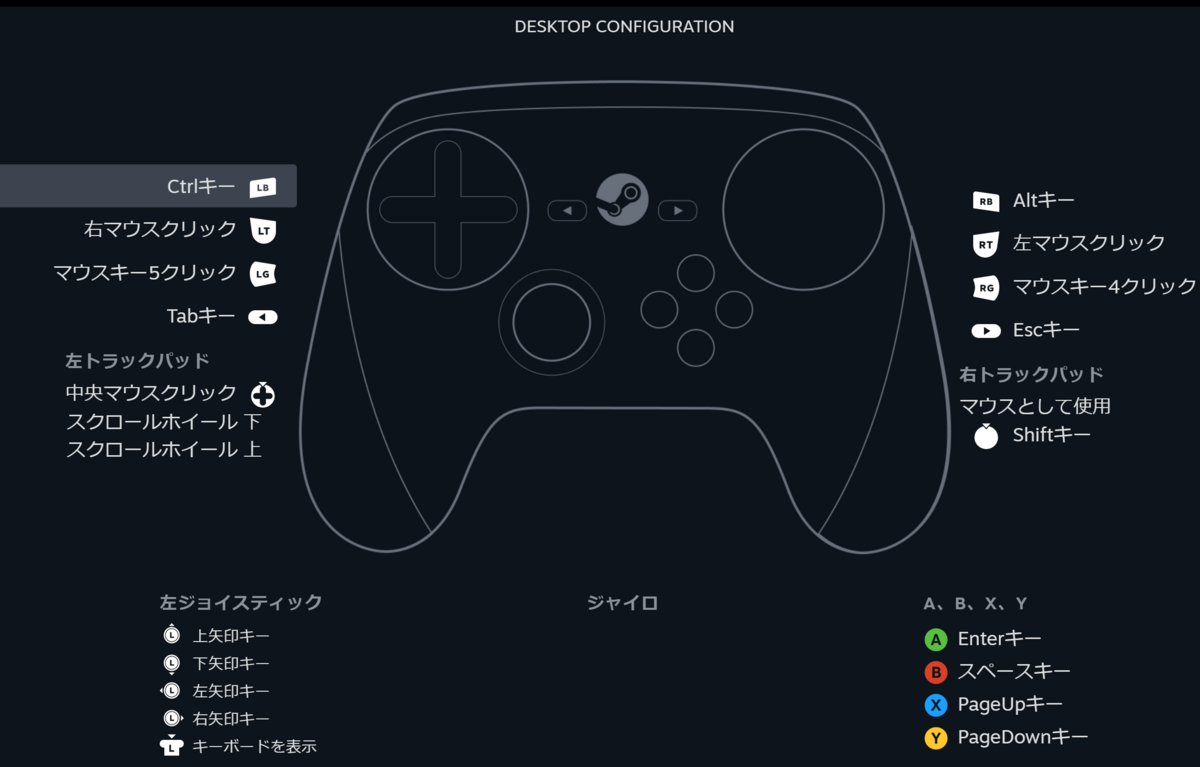
The right trackpad moves the mouse cursor, while LT/RT act as the mouse clicks. The LG (LEFT GRIP) and RG (RIGHT GRIP) buttons on the back act as browser Back/Forward buttons. Meanwhile, the left trackpad acts like a scroll wheel: tracing clockwise scrolls down, counterclockwise scrolls up, and pressing it performs a middle-click. Just with this, you can already cover every function of a standard mouse.
The rest of the inputs are mapped to frequently used keys. For example, Ctrl+Tab to switch browser tabs is LB + ◀ (SELECT), and Alt+Tab to switch applications is RB + ◀ (SELECT).
Starting to see how clever it is?
On top of that, holding down the center Steam button lets you assign secondary actions to other buttons. By default, it's configured like this:
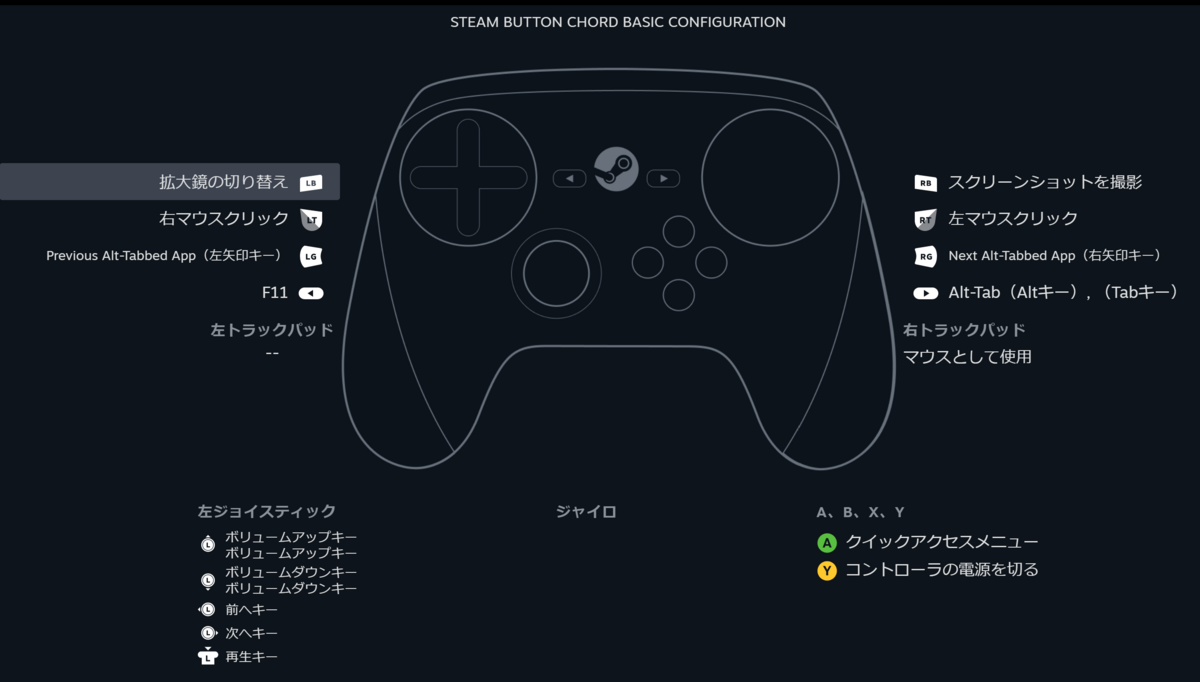
These might be used slightly less often, but you get things like F11 to maximize/fullscreen windows, volume control, and media controls (Previous, Next, Play/Pause).
Since there are also unassigned buttons and trackpad inputs, you can freely map keyboard shortcuts for whatever tools you use.
I have the Video Speed Controller browser extension installed, so I mapped actions like changing playback speed (±0.1x) and skipping forward 10 seconds, which is super handy. You can also use the left trackpad as a D-pad, so I have left/right set to speed adjustment and down set to skip forward 10 seconds.
I haven't set this up myself, but if you often interact with desktop icons, mapping Windows key + D to show the desktop somewhere could also be great.
Mouse Gestures and More
As an aside, the more comfortable people are with PCs, the more they tend to do everything with keyboard shortcuts. But with special mice like the ones mentioned at the start, you can't do that—so it's much smoother to rethink PC navigation as if you were using a tablet or smartphone.
For instance, most browsers support mouse gestures (via built-in features or extensions), letting you open a new tab, close a tab, or reload using only mouse movements. Whether you're using a Steam Controller or any mouse-only setup, it's a great trick to keep in mind.
Also, depending on the browser it's called Speed Dial or Shortcuts, but almost every browser lets you display a list of frequently visited sites when you open a new tab, which is worth taking advantage of. Placing shortcuts on your desktop or pinning apps to the taskbar helps a lot too.
Summary
People don't say it much anymore, but back when set-top boxes connected to TVs were briefly trendy, the term "10-foot UI" was thrown around a lot. Ten feet is about 3 meters. The idea was that as TVs gained more features, doing complex operations while sitting on a couch 3 meters away required a controller and UI designed specifically for it.
With modern Android TVs, the mainstream remotes all feel like "A D-pad, Confirm, and Back ought to be enough, right?!"—which always leaves me feeling a bit underwhelmed.
Personally, I really love the Steam Controller; even on plain Windows, you can get around pretty freely with nothing else. As I said at the start, it's already discontinued, so if you want one you'll have to hunt for a used unit. It's so handy that I really wish they'd re-release it.